Showing posts with label Smartbro. Show all posts

February 7, 2011

I just discovered on how to have a free internet using your Smart or Globe SIM using USB Modem just follow a simple steps that I will give their will be images for easy to follow. For me it is better to have a free internet than nothing because the speed of the free internet is not that fast and sometimes it's not that stable so have more patient and relax it's free and by the way you should have a load when doing this I tried this when I have a load of two Pesos so that the GPRS will work Try it and give me some feed backs post some comments.

First you need to download Ultrasurf
Then Extract it.

Configuring Your Modem
For Smart Users
Note: Don't use SmardBro Sim. Use only Smart Buddy or Talk n' Text

Open the Modem Software for me I'm Using the Telstra software from ZTE Australia you can download it here.
Then Click Settings >> Connections >> Add. (For Smart Software Settings >> Network Settings >> Config File >> Add.)
Then Fill up the form file name any name you want Dial Number *99#
Click Use the following APN name then enter internet
Then Click Okay.

Click Image for Larger Preview


For Globe Users
Open the Modem Software for me I'm Using the Telstra software from ZTE Australia you can download it here.

Then Click Settings >> Connections >> Add. (For Globe I don't know Just follow the steps in smart software maybe it same) - I will update this if I find the answer
Then Fill up the form file name any name you want Dial Number *99***1#
Click Use the following APN name then enter www.globe.com.ph
Then Click Okay.


After Configuring your Network Setting, Click Internet >>Then Connect.


Configuring UltraSurf
Open UltraSurf from the extracted file
Then Click Option
Click Proxy Settings
Select Manual Proxy Setting
Input Proxy and Port


Proxy and Port for Smart
Proxy: 10.102.61.46 
Port: 8080

Proxy and Port for Globe
Proxy: 203.177.42.214 Port: 8080 (100% Working) 
Proxy: 192.40.100.20 Port 8080 (100% Working)


Other working proxies:
203.177.91.131:80
202.149.67.82:8080
118.97.234.253:8080
119.252.162.120:8080
202.51.107.34:8080
222.124.213.118:8080
210.23.77.200:8080
125.162.242.160:8080
201.18.15.11:8080
192.40.100.20:8080

Other Working Proxy for Smart and Globe

If you want to have new Proxy and Port just leave a Comment 

After Configuring the Proxy Setting, Click Ok then Ok
Then wait for it to connect

Connecting

Connected

Configuring the Browser
For Firefox
Click Tools >> Options >> Advanced >>Network >> Settings.


Then Click Manual Proxy Configuration
Http Proxy: 127.0.0.1
Port: 9666
Then Okay


For Google Chrome
Click the Wrench Icon >> Options 


Click The Under the Hood Tab >> Change Proxy Settings.


Click Connections Tab >> Click The Profile You use >> Click Settings.
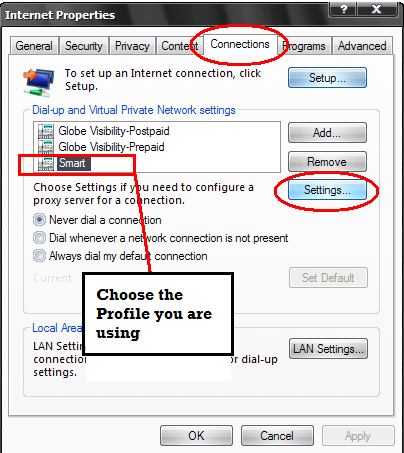

Then  Check Use Proxy Server for this Connection
Address: 127.0.0.1
Port: 9666
Then Click Ok


Just follow the steps to avoid errors, I just tested it this day February 6, 2011 if you have some questions just leave a comment enjoy.

Configuring Yahoo Messenger (Optional)
Open Internet Explorer Tools >> Internet Options >> Click Connections Tab >> Choose the Connections you are using >> Then Settings


Then  Check Use Proxy Server for this Connection
Address: 127.0.0.1
Port: 9666
Then Click Ok


Open Yahoo Messenger >> Click Messenger Tab >> Connection Preferences >> Click Connect via a Proxy Server >> Click HTTP Proxy >> Click Okay


Configuring your Internet Download Manager (IDM)(Optional)
Open IDM >> Option >> Click Proxy Tab >> Check Use HTTP Proxy >> Proxy 127.0.0.1 >> Port 9666.


What do you think? Give me some feed backs post some comments thanks
If you want to unlock your USB Modem go Here

January 30, 2011

I just finish unlocking my friends U.E. Warriors Smartbro USB Modem and this is my first time to unlock a USB modem, I just borrow it from him because I don't have one for my Windows 7 laptop and then I ask him if can I unlock it so that other networks can be use.

I tried to search in the internet about the process in how to unlock ZTE MF627 and I found a website saying that it only works in Windows XP and it can't be use in Windows 7 because it may damage the device.

Here's the tutorial in how to Unlock the ZTE MF626 or in MF627 and Working for Windows 7


Click for Larger Preview
Note: BROWNOUTS OR ANY POWER INTERRUPTIONS MAY CAUSE PERMANENT DAMAGE TO YOUR DEVICE!

Make sure No Simcard is inserted in the dongle.

Plug the USB device at the back of your PC or in a Laptop what ever you are using for me I'm using a Laptop running in Windows 7.

After plugging the device let your computer or laptop finish installing the device and wait for the confirmation. “Device is installed & ready for use”

Go to Start\Control Panel\System\Device Manager\ Make sure dongle is installed with drivers.
For Windows 7 install the Win7 Tool can be found at the bottom.

After installing the Win7 Tool download ZTE627 Unlock and it can also be found at the bottom.
Unzip the downloaded "ZTE627 Unlock" and then run the Flash Update
Make sure you already installed the Win7 Tool for Windows 7 user before you use the Flash Update because it may damage your device but I think you can't use the Flash Update for windows 7 without installing the Win7 Tool because you can't click the download button.
After running the Flash Update you can see a download button at the lower right of the program click it and it will flash the device.

Click for Larger Preview
Do not unplug or use the PC because it may damage your device!
When it is finish it will tell you so just wait, for me it took 18 minutes to flash the device.

Unplug it and put other SIM of your choice.

To use your openline modem, make a new profile:


SMARTBRO SIM:
APN: SMARTBRO

SMART PREPAID SIM:

APN: internet

GLOBE
:
Send TIME to 1111
APN: http.globe.com.ph

SUN:
Send ACTIVATE to 2300
APN: minternet

ACCESS DIAL: *99#
PROTOCOL: PAP
DNS: (OPTIONAL) 208.67.222.222/208.67.220.220

If you don't like to use the Globe software for going to the internet
with Smart or any other provider after overwriting the flash memory,
why don't you use the Telstra software from ZTE Australia:
http://www.mediafire.com/?6c82jr1ledna2u7 - NEW Version


or you can also try ZTE MF622
http://www.mediafire.com/?505vm3d1wdc6kth

Generic ZTE Dashboards
Download : Dashboard_Windows&MacOS_generic  
File size: 25.8 MBDashboard versions :
Windows PCW_ZTENDISV1.0.0B02
Driver version 01/04/2009, 1.2050.0.11
MacOS version ZTEPC_MacM06V1.0.0B14
Download : Dashboard_Windows_generic  
File size: 11.53 MBDashboard versions :
Windows : PCW_ZTENDISV1.0.0B02
Driver version 01/04/2009, 1.2050.0.11


Win7 Tool
Fileserve: http://www.fileserve.com/file/rfDraDN
Mediafire: http://www.mediafire.com/?woqmcjmn2z3

ZTE627 Unlock
Fileserve: http://www.fileserve.com/file/6Z3cVnA
Mediafire: http://www.mediafire.com/?zdfmzyhtemz

If you want to have a  Free Internet using your Open Line USB Modem Go Here
Copyright © 2013 iamjasonangel | Powered by Blogger
Follow Me: Twitter
Blogger Template by jasonangel | Facebook